Step 1
Open Students from your teacher dashboard
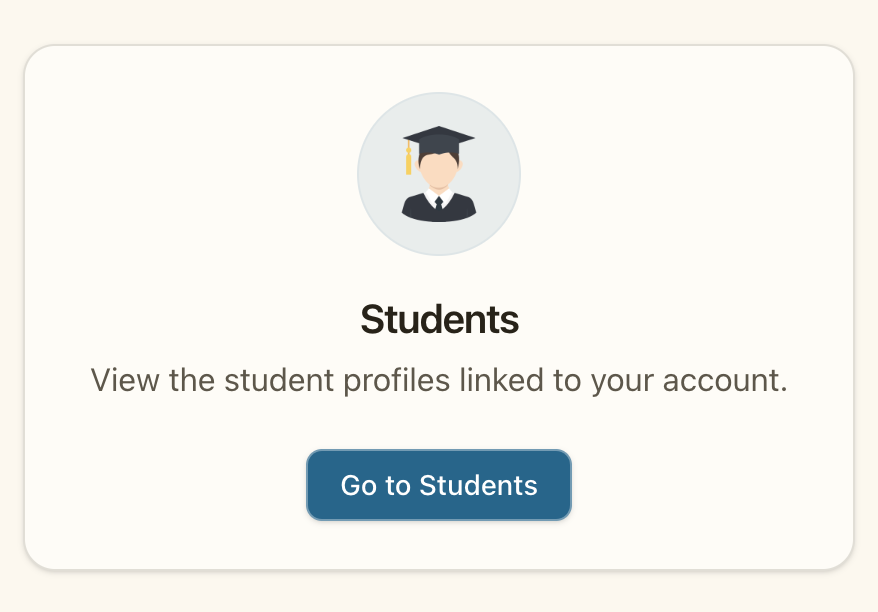
From the Teacher dashboard, choose the Students card and click Go to Students.
Step-by-step guides for teachers using My Learning Coach.
Link a parent or guardian to a student profile, share your vocabulary lists with them, and walk them through accepting the invitation.
Step 1
From the Teacher dashboard, choose the Students card and click Go to Students.
Step 2
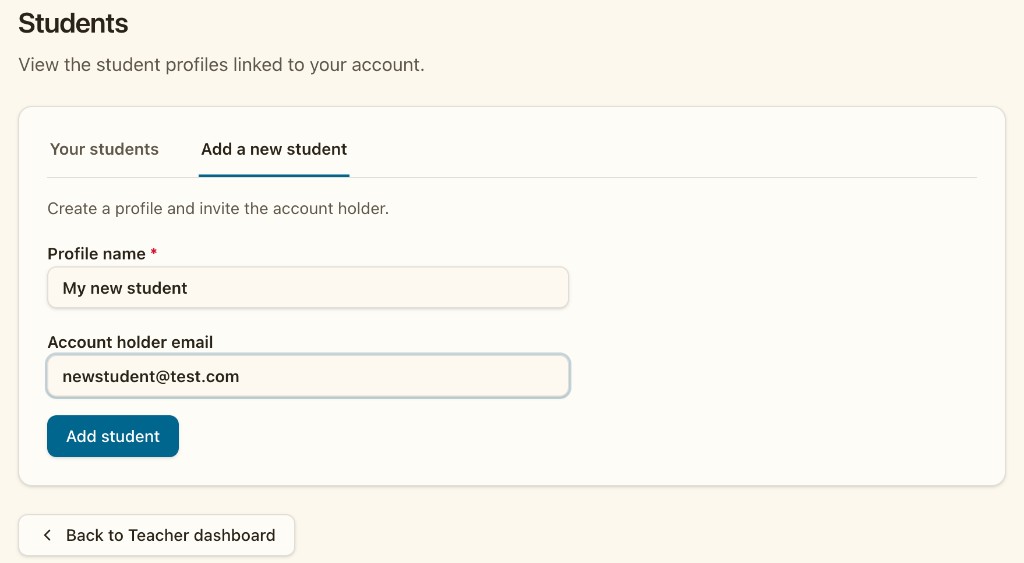
Open the Add a new student tab. Enter the profile name (the name you use for the child in class) and the account holder email (the parent or guardian who will sign in). Click Add student to send the invitation.
Step 3
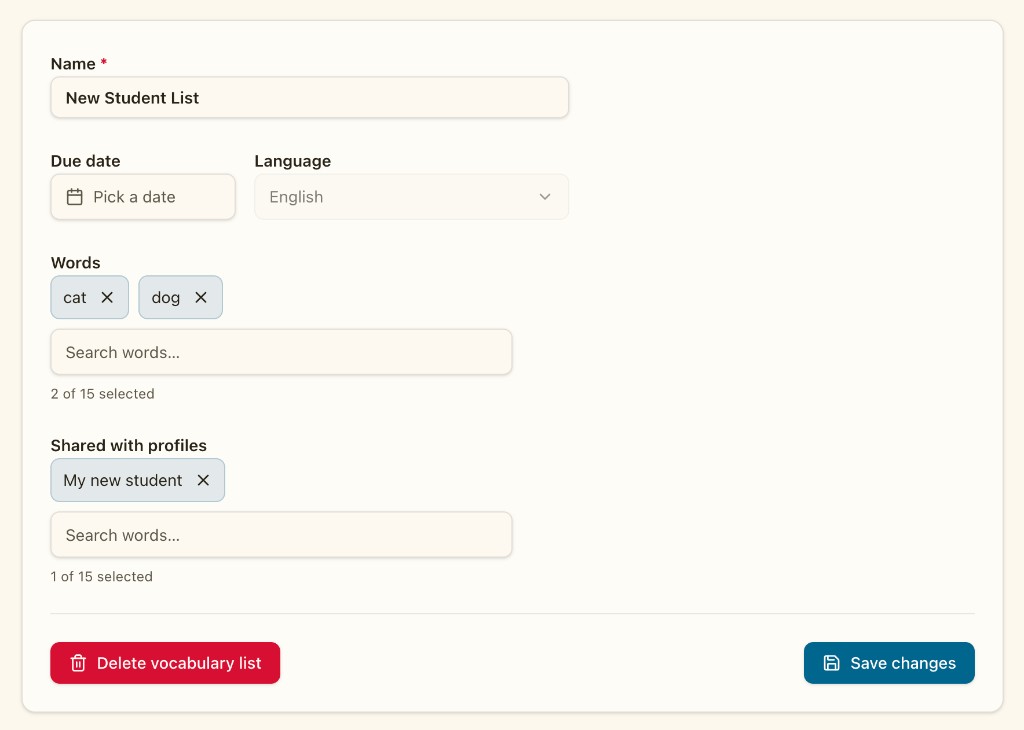
Create or edit a Vocabulary list, add your words, then select the student under Shared with profiles. Save changes so the family sees that list at home once they link the profile.
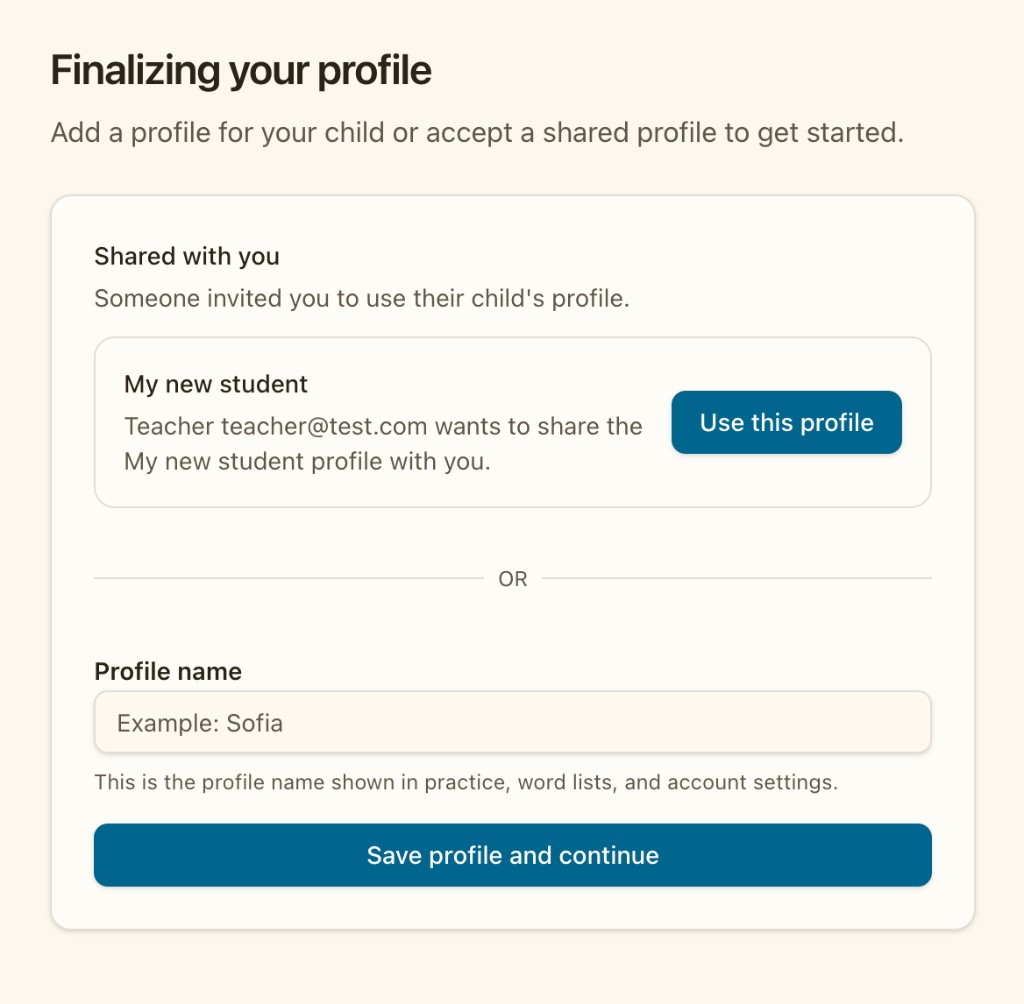
After you send the invitation, the parent signs in or creates an account, then links your student from the create profile screen.
Step 4
When creating an account—and verifying their email when needed—the parent reaches the create profile screen. Under Shared with you, they see the student you invited and can click Use this profile instead of entering a new profile name.
Step 5
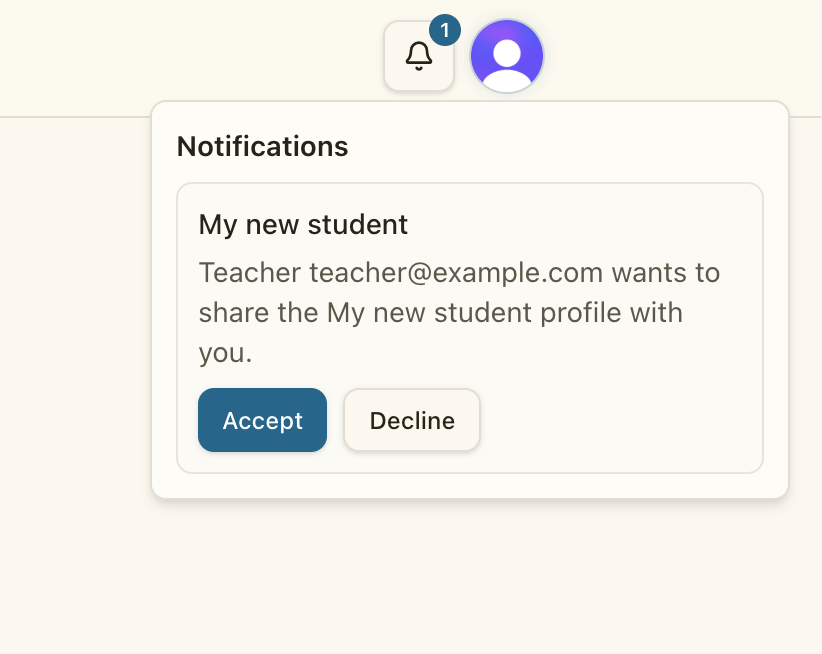
If the account holder already has an account, they see a notification in the bell menu and can accept or decline there. New account holders sign up first, then continue to the create profile screen.
Step 6
After accepting the profile, vocabulary lists you shared appear on the home screen and on the Vocabulary lists page for that student.